
PantherBuy QC Checker
Paste a PantherBuy link and see every QC photo other buyers got for that item.
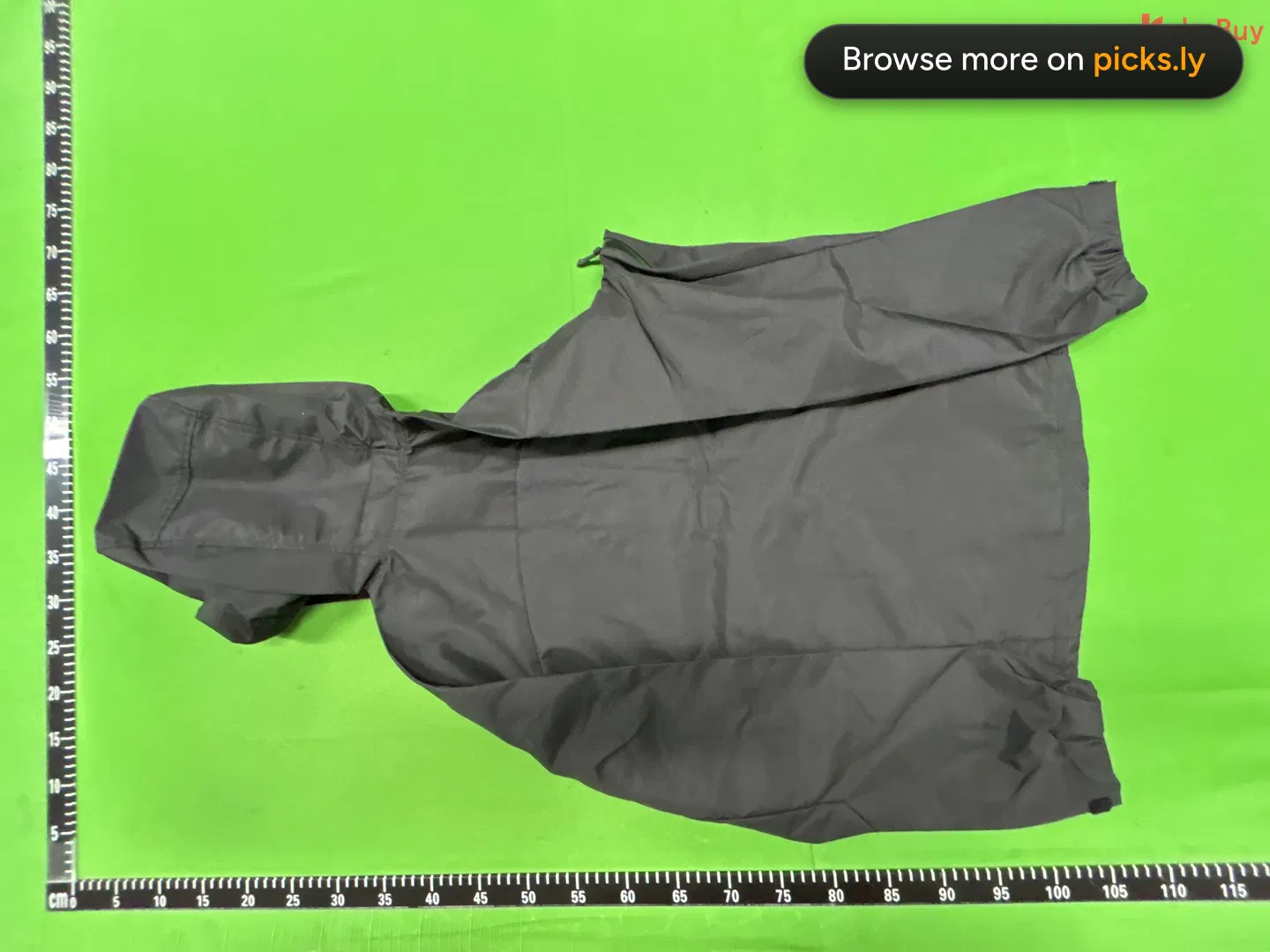
 168825
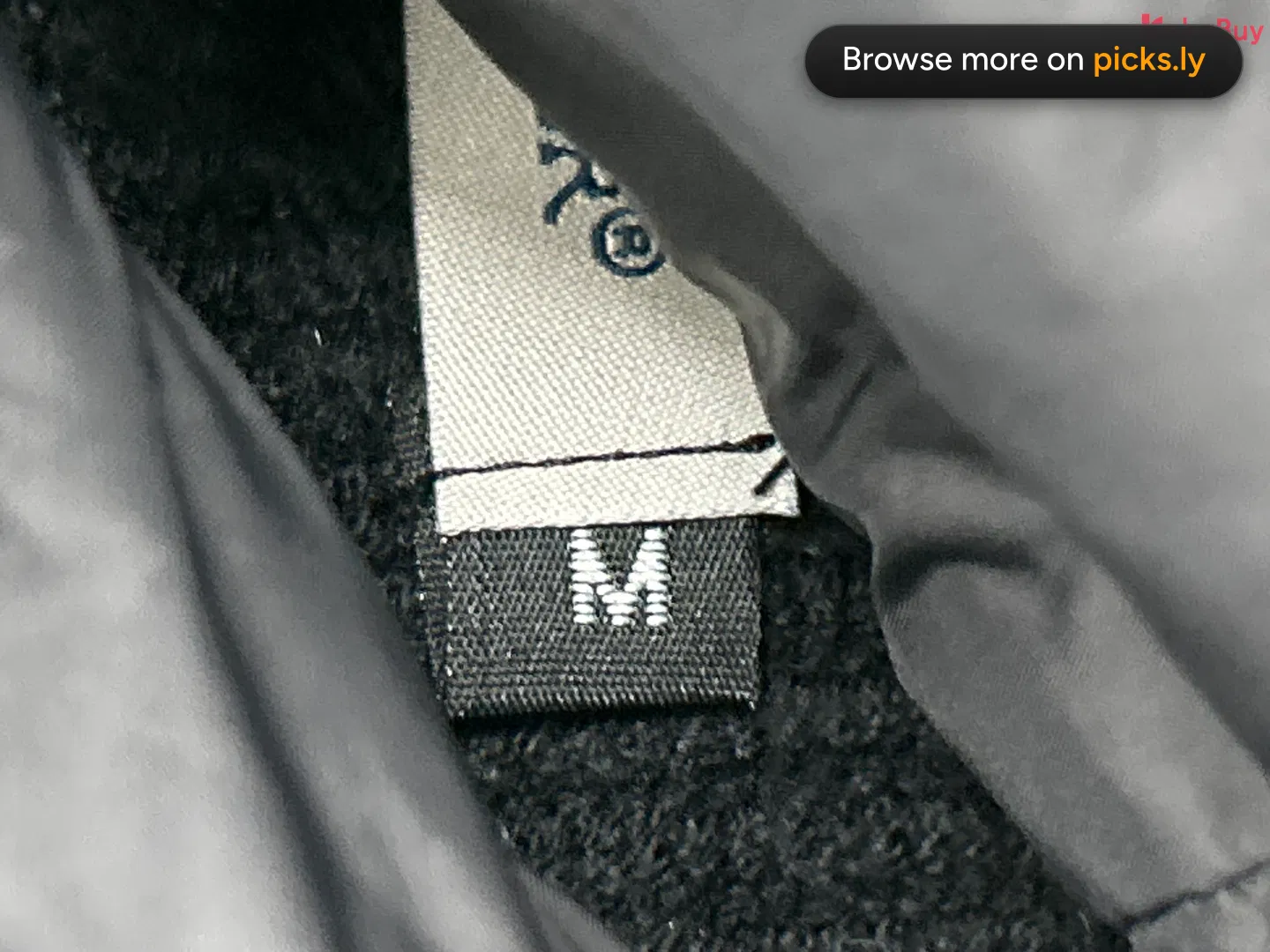 1688395
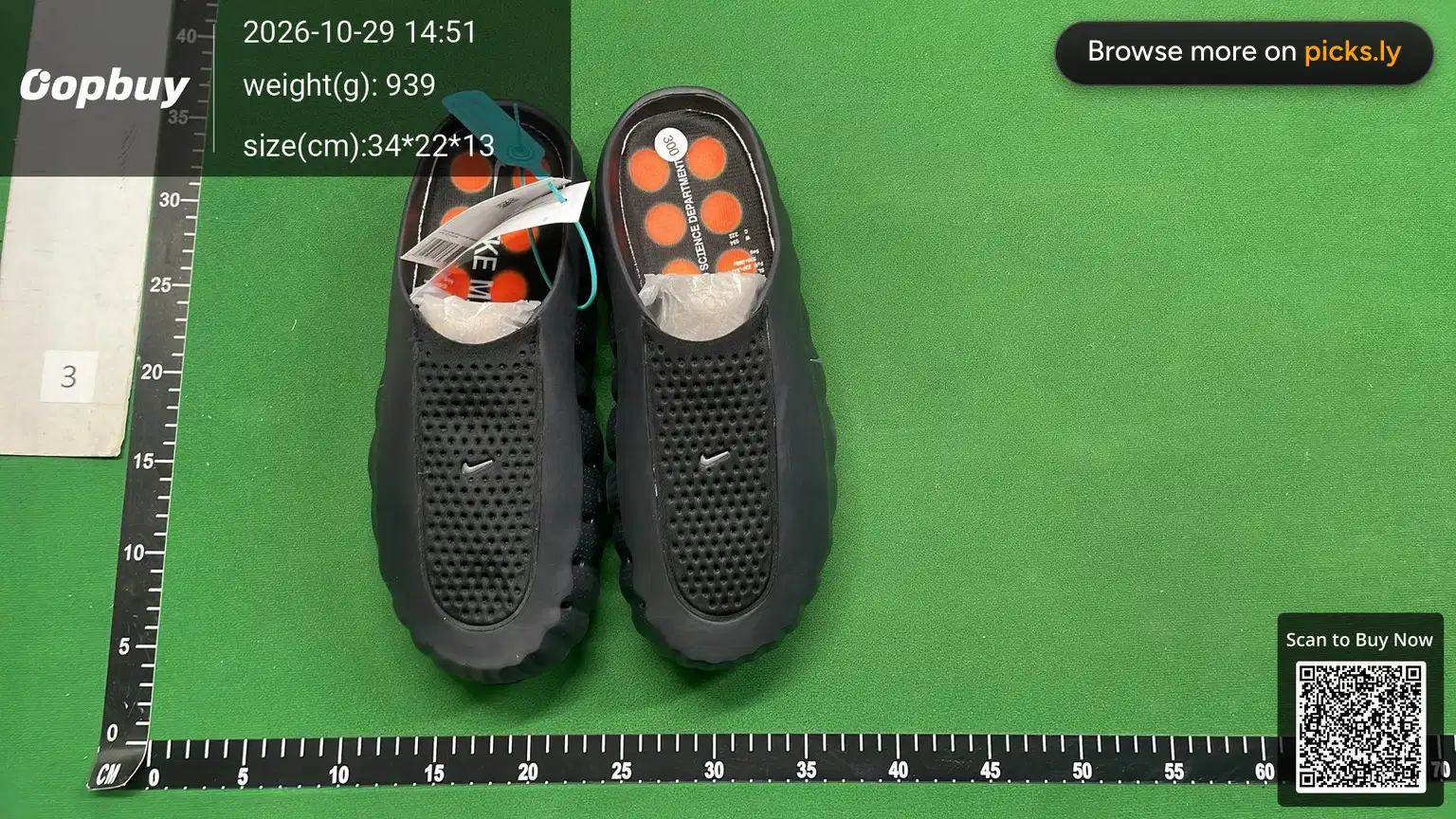 168846
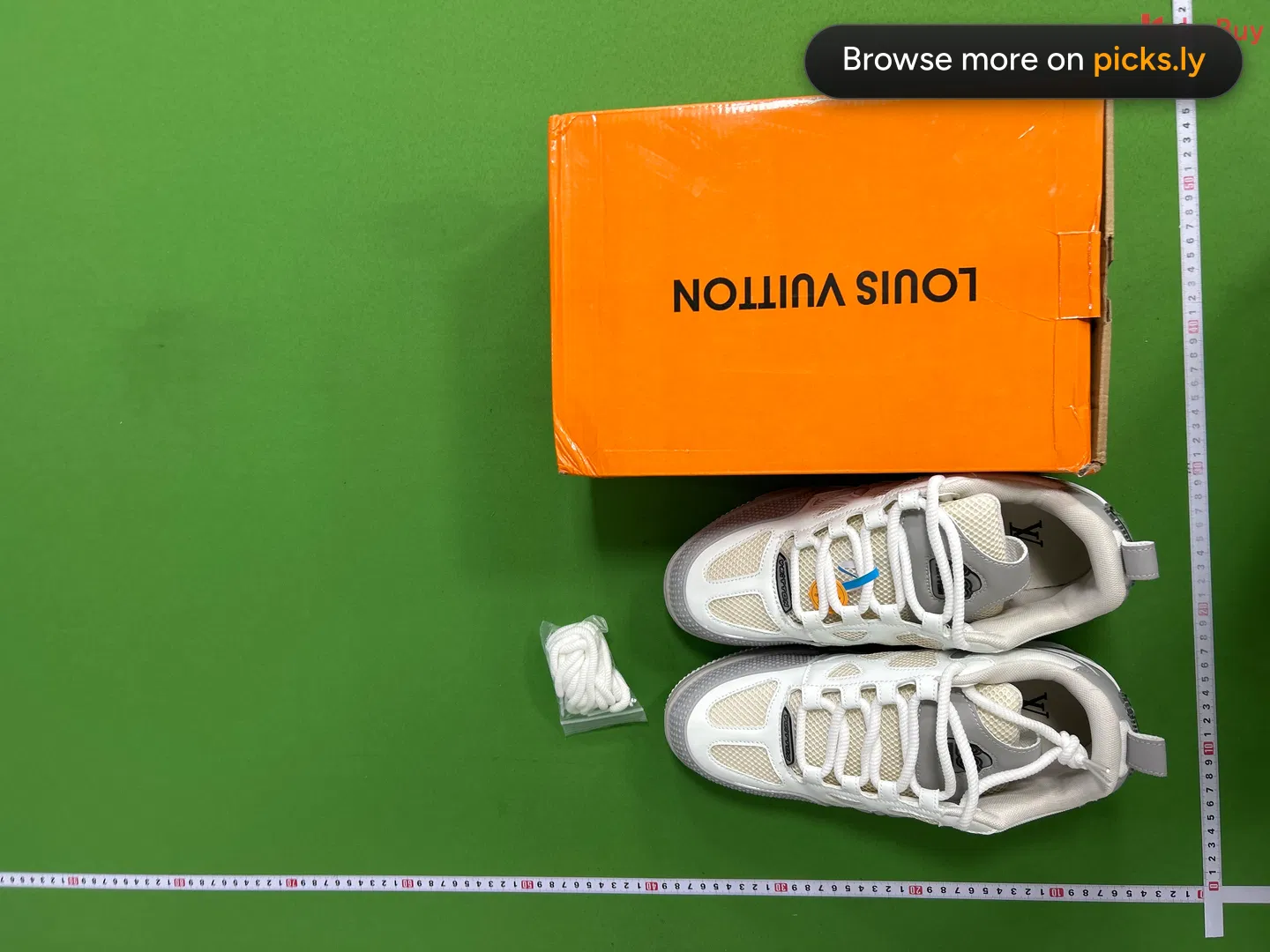 16881,108
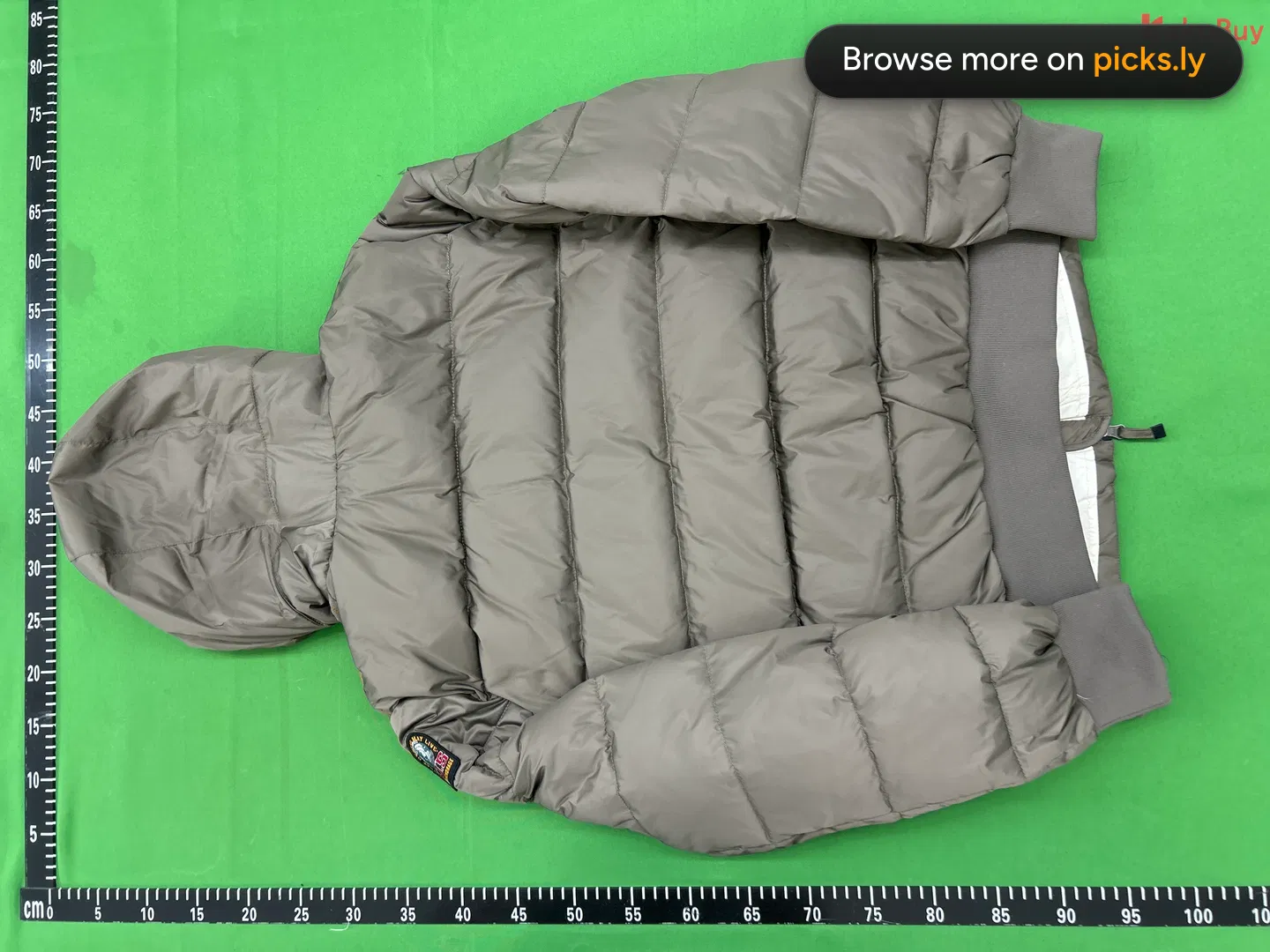 16881,410
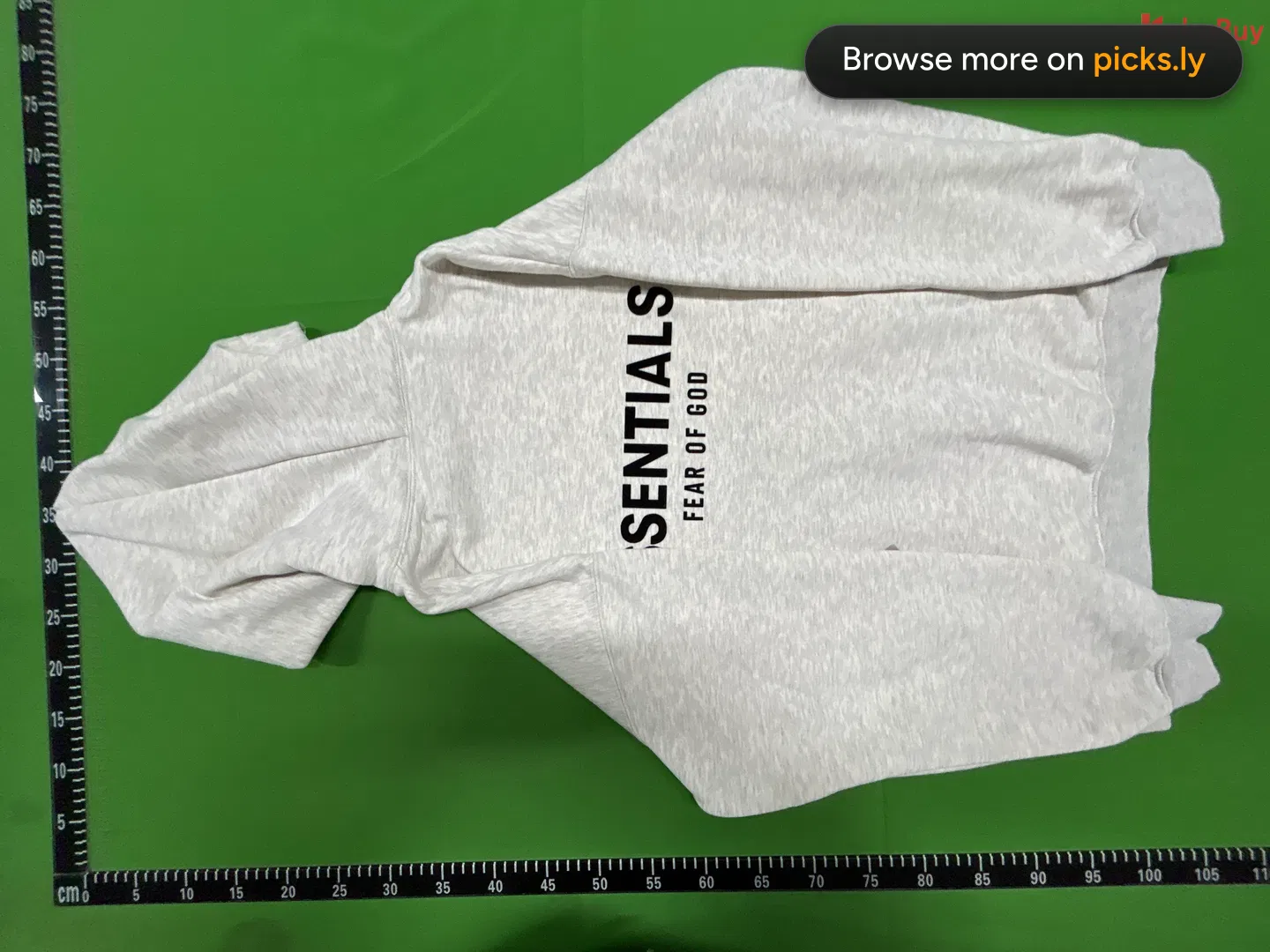 16881,073
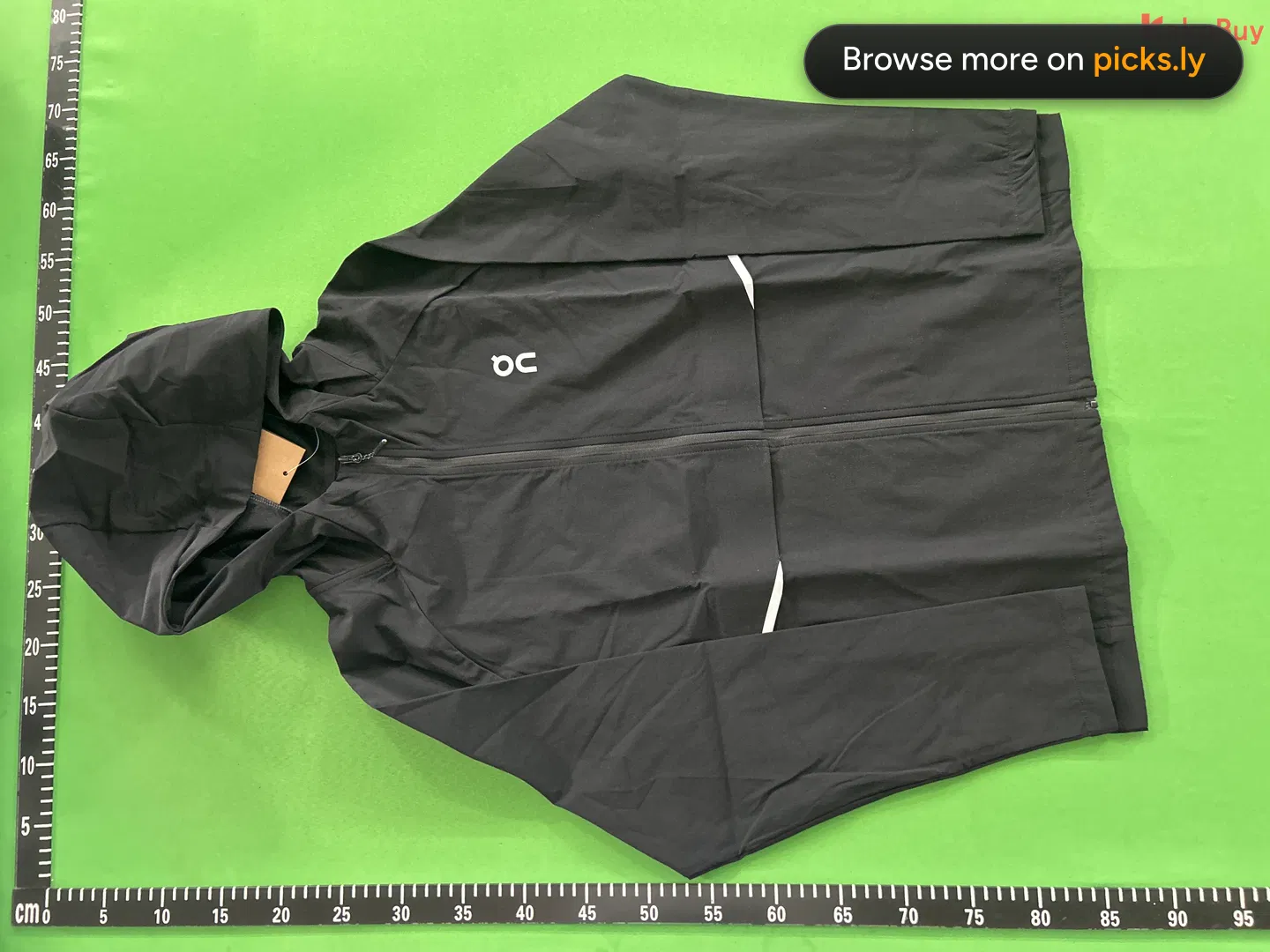 1688616
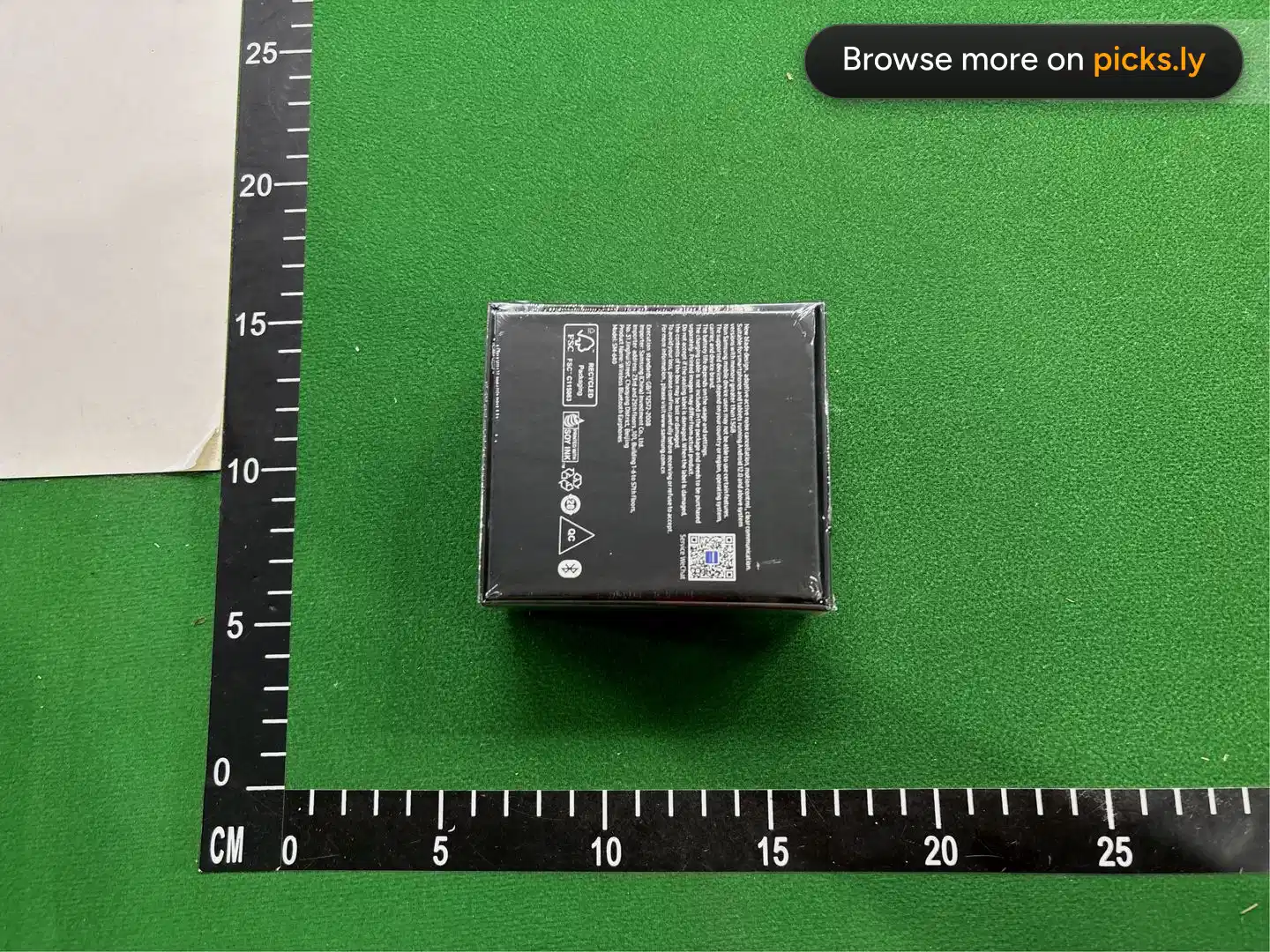
 Weidian23
 Weidian760
 168824
 Weidian6
 1688565
How to copy a PantherBuy link
- 1
Open the product on PantherBuy, on the website or in the app.
- 2
Copy the address from the browser bar (in an app: Share, then Copy link).
- 3
Paste it into the box above. QC Checker opens the photos right away.
What a PantherBuy link looks like
https://pantherbuy.com/Shop/SearchproductDetails?tp=weidian&url=https%3A%2F%2Fweidian.com%2Fitem.html%3FitemID%3D7614407334
- A PantherBuy link carries the original Weidian, Taobao or 1688 link inside it, so QC Checker reads the product straight from it.
After you find the QC photos
Pick your size and look at the newest orders first, since sellers change batches. Check the logo, tags, stitching and measurements against a retail photo, then decide. The QC checklist and what GL and RL mean.
PantherBuy QC checker questions
How do I check QC photos for a PantherBuy link?
Copy the product link from PantherBuy and paste it into the box above. QC Checker reads the Weidian, Taobao or 1688 product inside the PantherBuy link and shows every QC album from earlier orders.
Do I need to convert my PantherBuy link first?
No. Paste the PantherBuy link as it is - QC Checker understands PantherBuy's link format.
Are the photos only from PantherBuy orders?
No, they come from several agents' warehouses. The same product looks the same whichever agent bought it, so every album helps you judge it.
Is the PantherBuy QC checker free?
Yes. No account, no app, no payment.
 Kakobuy
 ZentBuy
 Hipobuy
 Superbuy
 Sugargoo
 ACBuy
 Orientdig
 Oopbuy
 USFans
 Litbuy
 iTaoBuy
 Eastmallbuy
 Loongbuy
 LoveGoBuy
 OOTD Buy
 Joyagoo
 CSSBuy
 Ponybuy
 BBDBuy
 Gonestbuy
 HooBuy
 BaseTao
 WheeBuy
 CatBuy
 LoloBuy
 WTCBuy
 GTBuy
 AllChinaBuy
 VigorBuy
 FishGoo
 RizzitGO
 OssBuy
 Fsbuy
 CNShopper
 TigBuy
 Fansbuy
 Hubbuycn
 Taobao